Book a 30-Minute Call With Our Certified Consultant
Connect directly with our accredited consultant to get clear answers on
your HubSpot underutilized features, integrations, reporting and automation.
In this Consultation, you can discuss:
HubSpot Consulting Needs
Custom Automation Plan
As a marketer, theres nothing more frustrating than seeing your email performance drop—only to realize a growing number of contacts have unsubscribed.
So naturally, the question arises: where do I find the unsubscribed list in HubSpot?
Whether you’re doing a list cleanup, investigating deliverability issues, or planning re-engagement campaigns, knowing how to access and understand your unsubscribe data is essential.
In this post, I’ll walk you through where to find the unsubscribed list in HubSpot, how HubSpot handles opt-outs, and how you can use this data to improve your marketing efforts.
Understanding How HubSpot Handles Email Unsubscribes
Before jumping into where to find the list, its helpful to understand how HubSpot tracks unsubscribe activity.
When a contact clicks the unsubscribe link in your emails, they are flagged at the subscription level, not necessarily deleted or removed from your CRM.
If they choose “Unsubscribe from all email HubSpot” communications, that status gets reflected in their contact record and removes them from all future marketing emails.
There are three key types of unsubscribes in HubSpot:
Global Unsubscribe – Unsubscribed from all email HubSpot
Subscription Type Unsubscribe – opted out from specific email types (e.g., newsletter only)
Suppression via import or hard bounce – not technically unsubscribed, but suppressed from sends
Now that we’ve clarified that, lets dive into the core question.
Where Do I Find the Unsubscribed List in HubSpot?
There are multiple ways to access unsubscribe data depending on what you’re looking for. Below are methods for both marketers and admins who’ve asked:
“Where do I find the unsubscribed list in HubSpot dashboard, admin console, email, or suppression views?”
1. Smart List (Active List) Based on Unsubscribe Status
This is the easiest and most reliable method.
Steps:
Go to Contacts > Lists
Click “Create List”
Choose Active List
Set filter to: Marketing emails > Unsubscribed from all email is equal to True
Name your list something like “Global Unsubscribed Contacts”
This list dynamically pulls anyone who has unsubscribed from all email HubSpot communications.
Works great if you’re trying to export or review everyone whose globally unsubscribed.
You can refine further by region, lifecycle stage, or source.
2. View Unsubscribed Status in Individual Contact Records
If you’re wondering where do I find the unsubscribed list in HubSpot email context per contact, you can check it directly in the contact record.
Steps:
Go to Contacts > Contacts
Search for a specific contact
Open their profile
Scroll down to the Email Subscription section
Here, you’ll see:
Which types of emails they’re unsubscribed from
Whether they opted out globally
Timestamp of the unsubscribe event
This view is useful for spot-checking individuals or diagnosing why a certain contact isn’t receiving emails.
3. Use the HubSpot Email Performance Report
If you’re in the Marketing > Email section, and asking yourself:
“Where do I find the unsubscribed list in HubSpot email performance report?”, here’s how:
Steps:
Navigate to Marketing > Email
Select a sent email campaign
Click the “Recipients” tab
Filter by “Unsubscribed”
You’ll see the list of contacts who opted out after receiving that specific email. This doesn’t show the full unsubscribed list—but it helps track trends over time.
4. Check Suppression List (For Admins)
If you’re asking: “Where do I find the unsubscribed list in HubSpot suppression or exclusion settings?” this part is for admins managing system-level email sends.
Steps:
Go to Settings > Marketing > Email
Click on Subscription Types
Click on “Manage” for a given type
Scroll to Suppressed Contacts (only available if contacts have been manually suppressed or opted out)
While you won’t see a downloadable list here, you can control which subscription types are active and what suppression rules are applied.
5. Exporting Unsubscribed Contacts for Backup or Analysis
Whether you’re doing audits or migrating data, you may want a copy of the full unsubscribe list.
Steps:
Create the smart list as explained earlier
Open the list and click “Actions > Export”
Choose CSV or Excel format
Include properties like:
Email
Lifecycle Stage
Unsubscribe Date (custom property if tracked via workflow)
Source (e.g., import, form, email)
This method is ideal for compliance reviews or syncing with external systems.
What If You Can’t Find the Unsubscribed List?
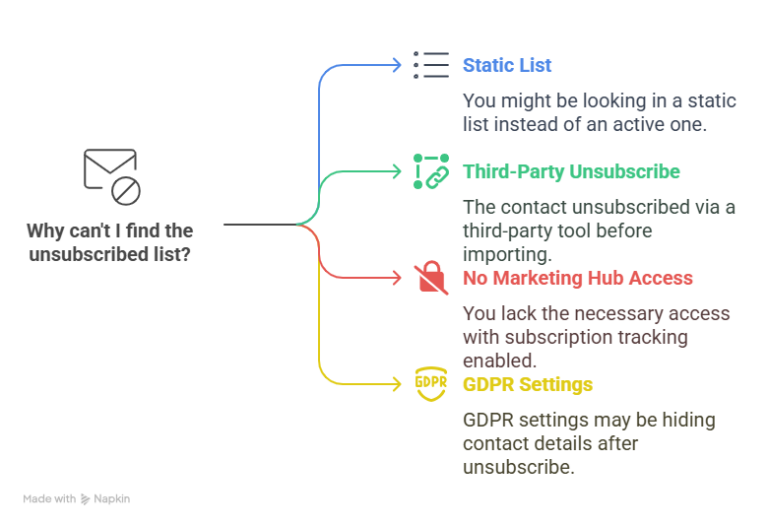
There are a few reasons you might be unable to locate unsubscribed contacts:
You’re looking in a static list instead of an active list
The contact didn’t unsubscribe via HubSpot (e.g., unsubscribed via a third-party tool like Mailchimp before importing into HubSpot)
You don’t have Marketing Hub access with subscription tracking enabled
GDPR settings hide certain contact details after unsubscribe, depending on your portal settings
In those cases, it’s best to work with your HubSpot admin or check the audit logs if you have Enterprise access.
Can I Re-Subscribe Contacts in HubSpot?
Short answer: No, not directly.
HubSpot follows strict compliance rules. If a contact has globally unsubscribed, you cannot resubscribe them manually. They must:
Fill out a HubSpot form with an updated subscription checkbox, or
Click a resubscribe link sent via transactional email, if enabled
If you’re running into trouble here, consider using resubscribe automation via workflows + transactional email setup.
Tips for Managing the Unsubscribe List Proactively
Now that you know where to find the unsubscribed list in HubSpot, here are a few expert practices to keep it under control:
Segment by subscription type to avoid over-emailing
Run quarterly email engagement audits and trim cold contacts
Use double opt-in to minimize spam complaints
Automate re-engagement campaigns before contacts opt out
Add unsubscribe reason collection via custom feedback forms
Managing email health is not just about list hygiene—it’s about respecting user preferences and adapting your content accordingly.
Where Do i Find the Unsubscribed List in HubSpot Admin Console – Conclusion
To recap, if you’re wondering where do I find the unsubscribed list in HubSpot, you’ve got multiple paths depending on your needs:
Smart List for Global Unsubscribes
Contact Record for Individual Status
Email Performance for Campaign-Specific Opt-Outs
Suppression Lists for Admins
Export for Analysis or Migration
Got more questions about email deliverability or how to build smarter re-engagement workflows in HubSpot? Drop a comment or reach out—I’d be happy to help.
Where Do i Find the Unsubscribed List in HubSpot Exclusion – FAQs
How do I resubscribe someone on HubSpot free CRM?
In HubSpot Free CRM, you cannot manually resubscribe a contact who has unsubscribed.
The contact must fill out a HubSpot form with a subscription checkbox or click a resubscribe link sent via a transactional email (if that feature is enabled).
How do I edit the unsubscribe page on HubSpot CRM?
To edit the unsubscribe page in HubSpot:
Navigate to Settings > Marketing > Email > Subscriptions.
Choose the subscription page you wish to modify and click Actions > Edit.
In the Design Manager, you can customize the template layout, branding, and content.
Does HubSpot automatically remove unsubscribed emails from imported list?
Yes, HubSpot automatically excludes unsubscribed contacts from marketing email sends.
Their email addresses remain in your CRM, but they’re suppressed from future emails based on their subscription preferences.
How do I remove unsubscribed contacts from HubSpot CRM?
To remove unsubscribed contacts from HubSpot, create an active list filtered by “Unsubscribed from all email is true,” then bulk select and delete them from the list. Keep in mind this permanently deletes their records from your CRM.
I am a certified HubSpot Consultant, Full Stack Developer, and
Integration Specialist with over 15 years of experience successfully transforming
business-critical digital ecosystems. My expertise spans the entire software lifecycle,
ranging from high-performance web application development to managing large-scale
migrations, enterprise-grade CRM integrations, and secure compliance-driven solutions.





 HubSpot Consulting Needs
 HubSpot Consulting Needs