Book a 30-Minute Call With Our Certified Consultant
Connect directly with our accredited consultant to get clear answers on
your HubSpot underutilized features, integrations, reporting and automation.
In this Consultation, you can discuss:
HubSpot Consulting Needs
Custom Automation Plan
How to Migrate from WordPress to HubSpot
If you’re looking to streamline your marketing and CMS under one powerful platform, understanding how to migrate from WordPress to HubSpot is the first step. Many businesses are making this move to take advantage of HubSpot’s CRM-integrated website management. In this article, we’ll cover everything you need to know about a successful WordPress to HubSpot migration from planning to execution without losing SEO performance or content integrity.
Why Migrate from WordPress to HubSpot?
While WordPress is a widely used CMS, it often relies on multiple plugins, third-party integrations and manual updates. HubSpot provides a unified platform that brings together your website, CRM, marketing automation and analytics.
Benefits of migrating include:
Native CRM and marketing automation tools
Built-in SEO recommendations
Intuitive drag-and-drop editor
Personalized content experiences
Enhanced site security and hosting performance
Pre-Migration Checklist
Before beginning the transition, make sure you’ve completed the following:
1. Audit Your Current Website
Export all your current content including:
Pages
Blog posts
Media files
Metadata (title tags, meta descriptions, alt text)
2. Analyze Existing Site Structure
Maintain your existing URL structure and prepare a list of redirects if needed. This helps maintain SEO rankings and prevents broken links.
3. Identify Must-Have Functionalities
Some WordPress features may rely on custom plugins. You’ll need to determine if HubSpot’s native modules or third-party apps can handle these functionalities.
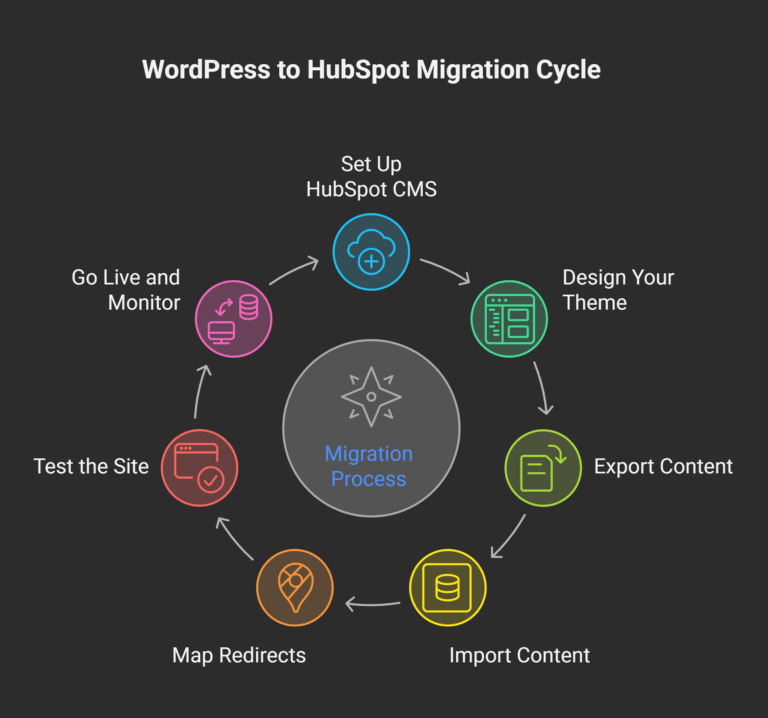
Step-by-Step: How to Migrate from WordPress to HubSpot
Step 1: Set Up HubSpot CMS
Start by choosing the appropriate CMS Hub plan. HubSpot CMS Hub Professional or Enterprise is recommended for businesses with moderate to large websites.
Step 2: Design Your Theme
You can replicate your existing WordPress design using:
For custom branding, it’s advisable to work with a HubSpot developer or agency.
Step 3: Export Content from WordPress
Use WordPress’s native export tool to download:
Posts
Pages
Custom post types
Also export your media files and store them in an organized folder.
Step 4: Import Content into HubSpot
Use HubSpot’s content import tool for blog posts. For pages, you’ll need to manually recreate them in the CMS using templates or modules.
Step 5: Map Redirects
To avoid broken links and SEO loss:
Create a URL mapping list
Add 301 redirects within HubSpot’s redirect settings
Step 6: Test the Site Thoroughly
Before going live, test:
Links and navigation
Mobile responsiveness
Page load speed
Forms and CTAs
Embedded media and scripts
Step 7: Go Live and Monitor
Once you’re confident everything is working as expected, update your domain DNS settings to point to HubSpot. Post-launch, monitor traffic, bounce rates and form submissions for performance dips.
Common Mistakes to Avoid
Skipping SEO Migration: Always move metadata and use 301 redirects.
Overlooking Mobile Optimization: Test each page for responsiveness.
Transferring Unneeded Pages: Review your site and eliminate content that is no longer relevant or up to date.
Not Informing Stakeholders: Keep your team informed to avoid workflow disruptions.
Post-Migration Tips for Success
Update XML Sitemap: Submit your new sitemap to Google Search Console.
Recreate Forms and CTAs: Using HubSpot’s built-in tools to enable tracking and automation.
Track Performance: Monitor bounce rates, conversions and crawl errors.
Conclusion
Migrating from WordPress to HubSpot offers significant long-term advantages, especially for businesses looking to centralize their marketing, CRM and website functions. The process requires thoughtful planning, attention to detail and execution—but the payoff in performance and efficiency is well worth it.
If you need expert guidance for your WordPress to HubSpot, contact Mpire Solutions — we specialize in helping businesses transition with minimal disruption and maximum success.
FAQs
1. Is HubSpot better than WordPress for business websites?
HubSpot is ideal for businesses seeking integrated CRM, marketing automation and content management. WordPress is flexible but often requires external tools to match HubSpot’s capabilities.
2. Will I lose my SEO rankings after migrating?
Not if you implement proper redirects, retain metadata and maintain a consistent URL structure. SEO best practices must be followed throughout the migration.
3. Can I migrate my blog posts from WordPress to HubSpot automatically?
Yes. HubSpot provides a blog import tool specifically for WordPress. However, you may still need to reformat content and reassign tags.
4. Do I need technical knowledge to migrate from WordPress to HubSpot?
While basic tasks like exporting content are simple, theme recreation, redirects and form rebuilding often require technical skills or support from a HubSpot agency.
5. How long does a migratin from WordPress to HubSpot take?
The duration varies based on how large your website is. A simple blog may take a few days, while a full corporate site with multiple integrations may take 2–4 weeks.
I am a certified HubSpot Consultant, Full Stack Developer, and
Integration Specialist with over 15 years of experience successfully transforming
business-critical digital ecosystems. My expertise spans the entire software lifecycle,
ranging from high-performance web application development to managing large-scale
migrations, enterprise-grade CRM integrations, and secure compliance-driven solutions.





 HubSpot Consulting Needs