Book a 30-Minute Call With Our Certified Consultant
Connect directly with our accredited consultant to get clear answers on
your HubSpot underutilized features, integrations, reporting and automation.
In this Consultation, you can discuss:
HubSpot Consulting Needs
Custom Automation Plan
How to Log an Email in HubSpot After Sending
Email communication is the heartbeat of every successful customer relationship. But what if you send an important email and forget to log it in HubSpot? Don’t worry, it happens more often than you think.
In this guide, we’ll explain how to log an email in HubSpot after sending, step by step. Whether you’re using Gmail, Outlook, or sending directly through your CRM, this walkthrough ensures all your correspondence is properly recorded.
If you’re looking for expert setup, workflow automation, or CRM optimization, working with a HubSpot Agency like Mpire Solutions can help you streamline your sales and marketing processes effectively.
Why Logging Emails in HubSpot Matters
Imagine a sales rep sends a proposal to a client but forgets to log it. Later, the marketing team emails the same client with a promotional offer—unaware of the ongoing negotiation. The result? Confusion, inconsistent communication, and lost credibility.
Logging emails in HubSpot ensures:
Every interaction is recorded for transparency.
Teams have unified visibility on all touchpoints.
Follow-ups are timely and relevant.
Reporting and automation workflows function accurately.
In short, it keeps your CRM data clean and actionable.
Different Ways to Log Emails in HubSpot
Before we cover how to log an email after sending, it’s important to know your options for syncing email communication with HubSpot.
1. Automatically via the HubSpot Sales Extension
If you use Gmail or Outlook, the HubSpot Sales extension automatically logs emails to HubSpot when enabled. This ensures all correspondence is instantly tracked and attached to the correct contact or company record.
2. Manually Logging an Email After Sending
Sometimes, you might forget to send an email using the extension—or you may send it from another device. In such cases, you can manually log emails to HubSpot afterward. Let’s see how.
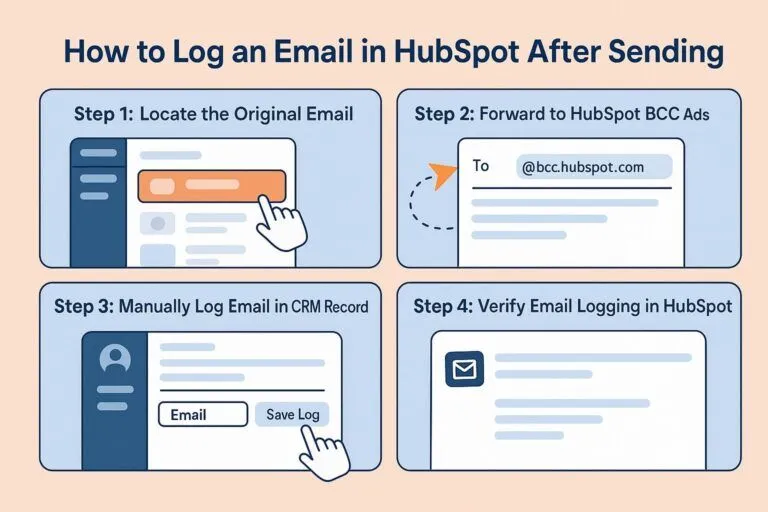
How to Log an Email in HubSpot After Sending (Step-by-Step)
Step 1: Locate the Original Email
Open your sent folder in your email client (Gmail, Outlook, or another service). Find the message you want to log into HubSpot.
Step 2: Forward the Email to Your HubSpot BCC Address
Every HubSpot account has a unique BCC email address. This address allows HubSpot to automatically log forwarded or sent emails.
Go to your HubSpot Settings → General → Email Logging.
Copy the BCC address (it usually looks like yourHubID@bcc.hubspot.com).
Forward your sent email to this address.
HubSpot will automatically associate the email with any existing contact using the same email address.
Example Scenario: A business development rep, Sarah, sends a proposal to client@acmecorp.com from Gmail but forgets to track it. Later, she forwards the sent message to her HubSpot BCC address. Within seconds, the email appears in the client’s HubSpot record.
Step 3: Manually Log Email in the CRM Record (Alternative Method)
If you prefer not to use the BCC method, you can manually log the message directly in HubSpot.
Open Contacts (or Companies, Deals, or Tickets) in HubSpot.
Select the record for the person or organization you emailed.
Click Log → Email from the activity panel.
Paste or summarize the email content.
Attach relevant files if needed.
Click Save Log.
This method works perfectly when the email contains attachments or sensitive data that shouldn’t be shared automatically.
Step 4: Verify Email Logging in HubSpot
After forwarding or manually logging, open the contact record and review the Activity Timeline. You’ll see:
The email subject line
Sender and recipient details
Date and time
Attachments (if applicable)
You can also tag colleagues, add comments, or associate the activity with deals or tickets.
Common Real-World Scenarios and Fixes
Scenario 1: “I Sent an Email from My Mobile and It Didn’t Log”
Emails sent from mobile apps often skip HubSpot tracking. The quick fix is to forward them later to your HubSpot BCC address.
Scenario 2: “The Email Logged Under the Wrong Contact”
If HubSpot linked it incorrectly, open the activity log and click Associations → Remove, then re-associate it with the correct contact or deal.
Scenario 3: “HubSpot Isn’t Logging My Gmail Emails Automatically”
Ensure that:
The HubSpot Chrome extension is installed and enabled.
“Log Email” is checked before sending.
HubSpot permissions are granted for Gmail/Outlook integration.
Pro Tips to Keep Your Email Logs Accurate
Always BCC Your HubSpot Address when sending from non-integrated devices.
Standardize Email Signatures across your team to make HubSpot’s tracking more accurate.
Use HubSpot Email Templates for consistent branding and faster tracking.
Check Logs Weekly to ensure no critical communications are missing.
Enable Notifications to confirm when HubSpot successfully logs each email.
How HubSpot Agencies Help Improve Email Tracking
Many businesses struggle with incomplete or inconsistent email logging. Partnering with a HubSpot Company like Mpire Solutions helps you:
Set up CRM integrations for Outlook and Gmail.
Train your teams to use email tracking effectively.
Clean and optimize your CRM data for better insights.
Mpire Solutions has helped hundreds of teams eliminate manual logging errors, improve sales visibility, and maintain a healthy HubSpot database.
Key Takeaways
Email logging keeps your CRM data accurate.
Use BCC or manual logging when you forget to send via HubSpot tools.
Check associations and verify activity logs to avoid duplicates.
Leverage automation and extensions for future accuracy.
Work with an expert HubSpot partner to set up and maintain optimized email systems.
Conclusion
Logging emails may seem like a small task, but it has a major impact on how efficiently your teams operate. By following these steps, you’ll maintain accurate customer records, improve collaboration, and gain full visibility into your client communications.
And if you’re looking to enhance your HubSpot setup even further, Mpire Solutions, a trusted HubSpot Company can help you automate, integrate and manage your CRM ecosystem for greater sales and marketing success.
FAQs
1. Can I log emails in HubSpot after sending from Gmail? Yes. Forward your sent message to your HubSpot BCC address, and HubSpot will automatically link it to the corresponding contact.
2. How do I find my HubSpot BCC address? In HubSpot, go to Settings → General → Email Logging. You’ll see your unique BCC address there.
3. Why isn’t HubSpot logging my sent emails automatically? Check if the HubSpot Sales extension is installed and the “Log Email” option is selected before sending.
4. Can I log emails manually without forwarding? Yes. Go to the relevant contact or deal record, click Log → Email and paste or summarize your message.
5. How can a HubSpot Agency help with email logging? A certified HubSpot Agency helps integrate your email tools, automate logging workflows and train your teams for consistent CRM practices.
I am a certified HubSpot Consultant, Full Stack Developer, and
Integration Specialist with over 15 years of experience successfully transforming
business-critical digital ecosystems. My expertise spans the entire software lifecycle,
ranging from high-performance web application development to managing large-scale
migrations, enterprise-grade CRM integrations, and secure compliance-driven solutions.





 HubSpot Consulting Needs