Book a 30-Minute Call With Our Certified Consultant
Connect directly with our accredited consultant to get clear answers on
your HubSpot underutilized features, integrations, reporting and automation.
In this Consultation, you can discuss:
HubSpot Consulting Needs
Custom Automation Plan
How to Create a Tag in HubSpot: A Complete Step-by-Step Guide
Efficient data organization is one of the most valuable aspects of a well-implemented HubSpot CRM. Tags (often managed through custom properties) allow businesses to categorize contacts, deals, and tickets for better segmentation, reporting, and automation. If you’re in the early stages of HubSpot CRM onboarding, understanding how to create a tag in HubSpot will help your team save time, improve workflows, and drive personalized communication.
In this guide, we’ll walk through how to create a tag in HubSpot, including deal tags and ticket tags, so you can keep your CRM clean and actionable.
What Are Tags in HubSpot?
Tags in HubSpot aren’t a native feature labeled “tags” like in some other CRMs. Instead, they are implemented as custom properties or labels that let you categorize records. These properties can then be used to:
Segment contact lists
Prioritize deals by type or stage
Categorize tickets for faster resolution
Trigger workflows for automation
Why Use Tags in HubSpot?
1. Better Segmentation
Tags let you group contacts or deals based on shared attributes, making it easier to run targeted campaigns.
2. Streamlined Reporting
By applying deal or ticket tags, you can filter dashboards and measure performance with more precision.
3. Enhanced Team Collaboration
Tags provide context for sales, service, and marketing teams, ensuring consistent understanding across departments.
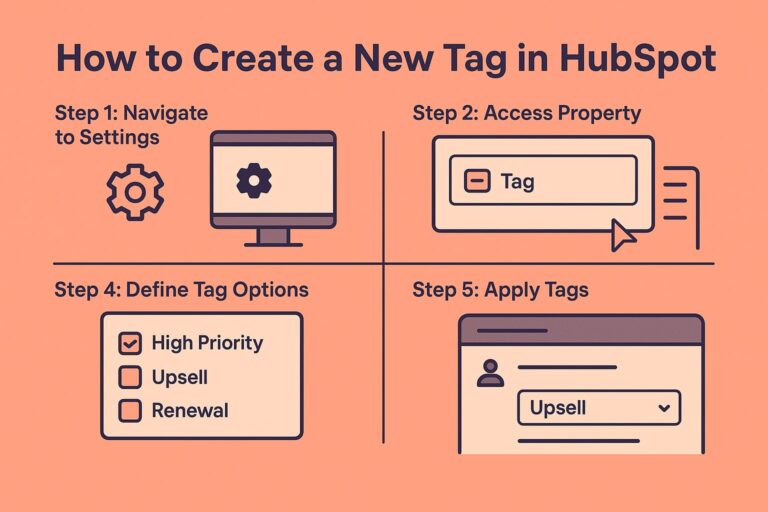
How to Create a Tag in HubSpot
Follow these steps to create a custom property (your “tag”) in HubSpot:
Step 1: Navigate to Settings
Log into your HubSpot account.
Click the gear icon (⚙️) in the main navigation bar to access Settings.
Step 2: Access Properties
In the left sidebar, go to Data Management > Properties.
Step 3: Create a New Property
Click Create Property.
Select the object type: Contact, Company, Deal, or Ticket.
Name the property (e.g., “Tag” or “Deal Category”).
Choose the field type — dropdown, single checkbox, or multiple checkboxes work best for tags.
Step 4: Define Tag Options
Add your desired tag options (e.g., “High Priority,” “Upsell,” “Renewal”).
Save the property.
Step 5: Apply Tags
Open a record (contact, deal, or ticket).
Locate the new property field and assign the relevant tag.
How to Create a Deal Tag in HubSpot
Tags for deals help sales teams track opportunities more effectively.
Create a custom property for deals called “Deal Tag.”
Add options like New Opportunity, Expansion, Renewal, Upsell.
Use these tags in deal pipelines, reports, and workflows.
This ensures sales leaders can instantly filter and prioritize deals based on type or stage.
How to Create Ticket Tags in HubSpot
Tags for tickets improve customer support management.
Go to Properties > Ticket.
Create a property called “Ticket Tag.”
Add categories such as Billing, Technical Issue, Feature Request, Urgent.
Agents can assign these tags when managing tickets, allowing service managers to run efficient queues and reports.
Practical Use Cases of HubSpot Tags
Marketing: Tag contacts as “Webinar Attendee,” “Newsletter Subscriber,” or “VIP Lead.”
Sales: Tag deals as “Renewal” or “Enterprise Lead” for prioritization.
Support: Tag tickets with “High Priority” to ensure fast escalation.
Common Mistakes to Avoid
Too Many Tags: Over-tagging leads to confusion and clutter.
Unclear Naming: Use descriptive names so all team members understand what each tag means.
No Governance: Create a tagging policy to maintain CRM hygiene.
Best Practices for Managing Tags
Standardize Naming Conventions: Decide whether to use singular/plural, abbreviations, etc.
Audit Regularly: Review tag usage quarterly to merge duplicates or remove outdated ones.
Integrate with Automation: Use tags as triggers in workflows for efficiency.
Conclusion
Learning how to create a tag in HubSpot is essential for keeping your CRM organized and actionable. Whether you need contact, deal, or ticket tags, the process revolves around setting up custom properties that enhance segmentation, reporting, and collaboration.
At Mpire Solutions, we’ve helped businesses refine their HubSpot environments through expert CRM setups, integrations, and onboarding services. If your team is struggling with CRM structure, workflows, or adoption, reach out to us for professional HubSpot consulting.
FAQs
1. How to create a tag in HubSpot? You can create a new tag by adding a custom property for contacts, companies, deals, or tickets under HubSpot Settings > Properties.
2. Can I create multiple tags for one deal in HubSpot? Yes, by selecting the multiple checkboxes field type when creating the custom property, you can assign more than one tag.
3. How do I use tags in HubSpot automation? Tags can act as triggers or conditions in workflows, enabling you to send automated emails, assign tasks, or update properties.
4. What is the best way to create ticket tags in HubSpot? Create a custom property for tickets with values like “Billing,” “Technical Issue,” or “Urgent.” Support agents can assign them for easier ticket management.
5. Are HubSpot tags visible in reports? Yes. Tags (custom properties) can be added as filters in reports and dashboards to track performance by category.
I am a certified HubSpot Consultant, Full Stack Developer, and
Integration Specialist with over 15 years of experience successfully transforming
business-critical digital ecosystems. My expertise spans the entire software lifecycle,
ranging from high-performance web application development to managing large-scale
migrations, enterprise-grade CRM integrations, and secure compliance-driven solutions.





 HubSpot Consulting Needs