Book a 30-Minute Call With Our Certified Consultant
Connect directly with our accredited consultant to get clear answers on
your HubSpot underutilized features, integrations, reporting and automation.
In this Consultation, you can discuss:
HubSpot Consulting Needs
Custom Automation Plan
How to Delete HubSpot Account: A Complete Guide
Deleting a HubSpot account is not something businesses take lightly. Whether you are switching to another CRM, consolidating systems, or closing unused portals, the process requires careful planning. As a certified HubSpot Agency with 15+ years of consulting experience, we often guide clients through account transitions, ensuring their data is properly handled and business continuity remains intact.
In this guide, you’ll learn how to delete a HubSpot account across different scenarios, including free accounts, paid subscriptions, and developer portals. We’ll also cover important considerations before you cancel, so you don’t lose valuable data or access prematurely.
Why Businesses Consider Deleting a HubSpot Account
Before exploring the steps, it helps to understand why companies choose this route:
Switching CRM platforms: Moving to Salesforce, Zoho, or another enterprise CRM.
Duplicate or unused accounts: Teams may accidentally create multiple portals.
Billing consolidation: Organizations may want to cancel extra paid seats.
End of business operations: Startups closing down or pivoting away from CRM needs.
Deleting an account is permanent, so weighing alternatives, such as pausing a subscription or removing unused users, can sometimes be a better solution.
Key Considerations Before You Delete
Backup Your Data
Once an account is deleted, HubSpot removes associated data. Always export contacts, deals, marketing assets, and reports before canceling.
Review Paid Subscriptions
Deleting a HubSpot account doesn’t automatically cancel active subscriptions. You must cancel billing first to avoid unwanted charges.
Admin Access Required
Only Super Admins can permanently remove accounts. Confirm that you have the required permissions in place before moving forward.
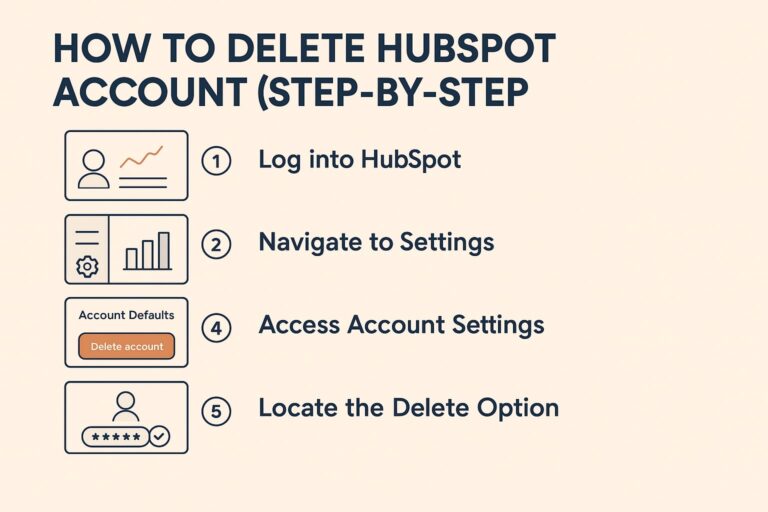
How to Delete HubSpot Account (Step-by-Step)
Step 1: Log Into HubSpot
Sign in with the Super Admin credentials for the account you want to delete.
Step 2: Navigate to Settings
Click the gear icon in the main navigation bar.
Step 3: Access Account Settings
In the left sidebar, go to Account Settings > Account Defaults.
Step 4: Locate the Delete Option
Scroll to the Delete Account section. HubSpot will prompt you to confirm deletion.
Step 5: Confirm and Authenticate
Enter your login details again to verify your identity. Once confirmed, the account deletion process begins.
How to Remove HubSpot Account vs. Cancel Subscription
Many users confuse deleting an account with canceling a subscription. Here’s the difference:
How to remove HubSpot account: Permanently deletes the portal and associated data.
How to cancel HubSpot account subscription: Stops billing but keeps the portal accessible in a limited capacity.
If you only want to stop payments, cancel subscriptions first instead of deleting the account.
How to Delete Free HubSpot Account
Free accounts are simpler to remove since they don’t have active billing. The process is the same:
Go to Settings > Account Defaults.
Select Delete Account.
Confirm deletion with your credentials.
How to Delete HubSpot Account
HubSpot developer accounts are used for testing apps and integrations. To delete:
Log into your developer portal.
Navigate to Account Settings.
Choose Delete Account and confirm.
Be aware that deleting a developer account removes all apps and test data linked to it.
Common Issues When Deleting a HubSpot Account
Pending Invoices: You cannot delete until invoices are cleared.
Incorrect Permissions: Only Super Admins can delete.
Linked Integrations: Disconnect integrations (e.g., Gmail, Slack, Shopify) before deletion.
Multiple Portals: Verify you are deleting the correct account to avoid mistakes.
Alternatives to Deleting a HubSpot Account
Sometimes deletion isn’t the best choice. Consider these alternatives:
Downgrading to Free: Cancel paid subscriptions and continue using HubSpot with limited features.
Removing Users: If the account is overcrowded, remove inactive users instead of deleting the entire portal.
Pausing Subscriptions: Contact HubSpot support to explore temporary suspension.
Conclusion
Knowing how to delete HubSpot account, whether free, paid, or developer, gives you control over your business data and subscription costs. However, deletion is permanent. Always export data, confirm billing status, and verify account access before proceeding.
If you’re considering switching CRMs or need help with HubSpot transitions, our HubSpot Company at Mpire Solutions can provide expert support to make the process smooth and secure.
FAQs
1. Can I recover my HubSpot account after deleting it? No. Once deleted, the account and data cannot be restored. Always export data first.
2. Does deleting my HubSpot account cancel my subscription? No. You must cancel billing before deleting the account to avoid charges.
3. How do I delete a HubSpot developer account? Log into your developer portal, go to Account Settings, and select “Delete Account.”
4. Can I delete my HubSpot free account? Yes. Free accounts can be deleted directly from the Account Settings page.
5. What’s the difference between removing and canceling a HubSpot account? Removing (deleting) permanently erases the portal, while canceling stops billing but may leave the account accessible with limited features.
I am a certified HubSpot Consultant, Full Stack Developer, and
Integration Specialist with over 15 years of experience successfully transforming
business-critical digital ecosystems. My expertise spans the entire software lifecycle,
ranging from high-performance web application development to managing large-scale
migrations, enterprise-grade CRM integrations, and secure compliance-driven solutions.





 HubSpot Consulting Needs