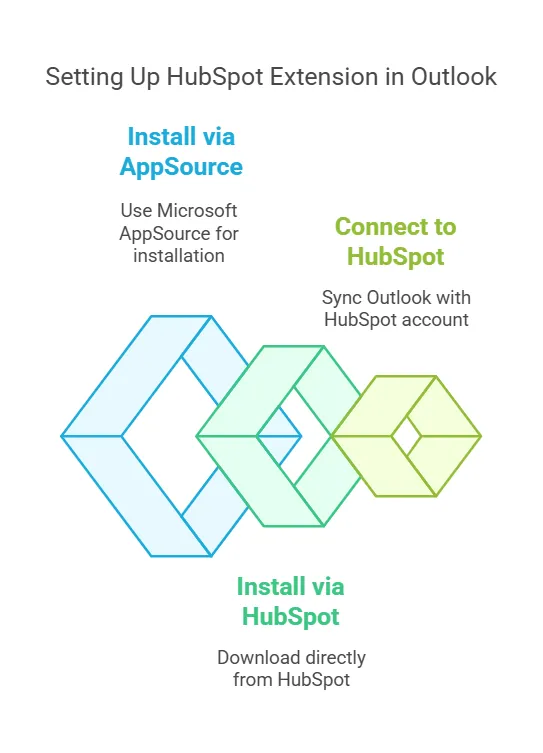
Step 2: Install HubSpot Outlook Extension via Microsoft AppSource
The easiest way to install the HubSpot add-in for Outlook is through Microsoft AppSource. Follow these steps:
Open Outlook on your Windows 10 PC or Outlook 365 account.
Click on File > Manage Add-ins (or go to Outlook Web App > Settings > Manage add-ins).
In the Office Add-ins Store, search for HubSpot Sales.
Click Add and then Continue to install the HubSpot plugin.
Follow the on-screen prompts to complete the installation.
Restart Outlook to activate the extension.
Step 3: Install HubSpot Outlook Plugin via HubSpot Marketplace
If you prefer downloading directly from HubSpot, follow these steps:
Log in to your HubSpot account.
Navigate to Settings > Integrations > Email Integrations.
Click on Outlook Integration.
Download the HubSpot Outlook extension installer.
Run the installer and follow the setup instructions.
Restart Outlook to finalize installation.
Step 4: Connect HubSpot to Outlook
Once installed, you need to connect it to your HubSpot account:
Open Outlook and locate the HubSpot Sales toolbar.
Click Log in and enter your HubSpot credentials.
Select the email address you want to sync with HubSpot.
Click Connect.
Your HubSpot extension for Outlook is now fully set up!
Troubleshooting: HubSpot Outlook Plugin Not Working?
Even after installation, you may face issues where the HubSpot Outlook plugin is not working.
Here are some common problems and solutions:
Issue 1: HubSpot Extension Not Showing in Outlook
Solution:
Ensure Outlook is updated to the latest version.
Restart Outlook and check if the add-in appears under Manage Add-ins.
Reinstall the extension from Microsoft AppSource.
Issue 2: HubSpot Outlook Plugin Not Logging Emails
Solution:
Check if email tracking and logging are enabled in HubSpot settings.
Make sure the correct email account is connected to HubSpot.
Verify that the recipient’s email is in a logged contact in HubSpot.
Issue 3: HubSpot Outlook Plugin Download Fails
Solution:
Disable any antivirus or firewall temporarily and try again.
Use a different browser to download the plugin from HubSpot.
Ensure you have admin permissions on your PC.
How to Uninstall HubSpot Extension from Outlook
If you need to remove the HubSpot add-in for Outlook, follow these steps:
Open Outlook and go to File > Manage Add-ins.
Find HubSpot Sales in the list.
Click Remove.
Restart Outlook.
If you installed it via the HubSpot plugin download, use Windows Add or Remove Programs to uninstall it.
How to Add HubSpot Plugin to Outlook – Conclusion
Now that you know how to add HubSpot extension to Outlook, you can streamline your sales and email tracking efforts.
If you experience issues like HubSpot Outlook plugin not working, use our troubleshooting tips to fix them quickly.
How to Add HubSpot Extension to Outlook Windows 10 – FAQs
Why is HubSpot not showing in Outlook app?
HubSpot may not be showing in the Outlook app due to an outdated add-in, disabled permissions, or conflicts with other plugins. Try reinstalling the HubSpot Sales add-in, enabling it in Outlook settings, and ensuring your Outlook version is up to data.
I am a certified HubSpot Consultant, Full Stack Developer, and
Integration Specialist with over 15 years of experience successfully transforming
business-critical digital ecosystems. My expertise spans the entire software lifecycle,
ranging from high-performance web application development to managing large-scale
migrations, enterprise-grade CRM integrations, and secure compliance-driven solutions.





 HubSpot Consulting Needs