Book a 30-Minute Call With Our Certified Consultant
Connect directly with our accredited consultant to get clear answers on
your HubSpot underutilized features, integrations, reporting and automation.
In this Consultation, you can discuss:
HubSpot Consulting Needs
Custom Automation Plan
If you work with automation daily, knowing how to paste JSON in n8n can save hours of manual setup. From importing ready-made workflows to inserting API payloads, JSON copy-paste is a core skill for anyone building serious n8n integrations for sales, marketing, RevOps or backend automation. This guide will demonstrate effective methods which can be applied in actual situations to complete tasks without disrupting existing processes or resulting in data loss.
Is there a simple way to paste JSON in n8n without breaking workflows?
Yes. n8n allows JSON to be pasted directly into workflows, nodes and executions using the canvas, Code Editor or Import feature when the structure matches n8n schema.
Why JSON matters so much in n8n workflows
JSON is the backbone of how n8n passes data between nodes. Whether you’re working with APIs, webhooks, AI models or CRM data, almost everything inside n8n eventually becomes JSON.
Real-world situations I see every week:
A RevOps manager copying an API response into n8n to test a workflow
A developer importing a workflow JSON shared by a teammate
A marketer pasting sample webhook data to map fields before launch
When JSON is pasted incorrectly, workflows fail silently, expressions break or nodes return empty data—causing real delays.
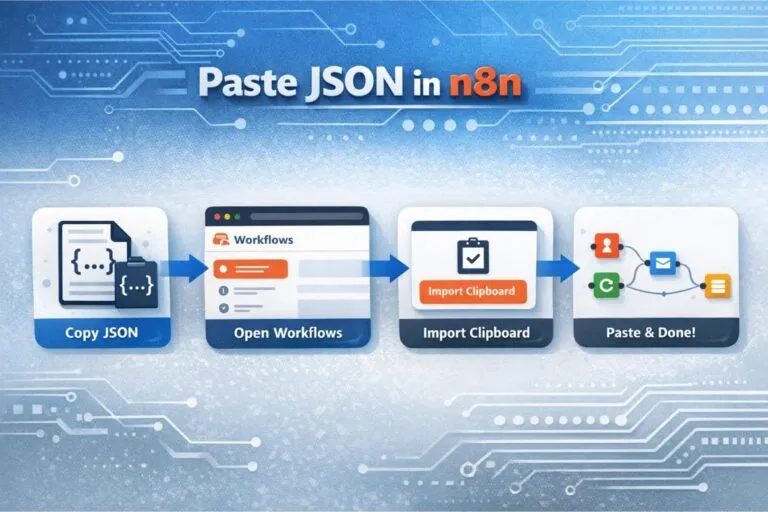
How to paste JSON in n8n (full workflow import)
This is the most common scenario when someone shares a workflow file or GitHub snippet.
Steps to copy paste JSON workflow in n8n
Copy the full workflow JSON (must include nodes, connections and settings)
Open n8n and go to the Workflows page
Click Import from Clipboard
Paste the JSON and confirm
If the structure is valid, the workflow appears instantly on the canvas.
Real issue people face: Teams often paste partial JSON (only nodes, no connections). That’s why the workflow imports but doesn’t run.
How to paste JSON code in n8n nodes
Sometimes you don’t want a full workflow just raw JSON inside a node.
Common nodes where JSON is pasted
Set node (manual JSON fields)
HTTP Request node (body or headers)
Code node (JavaScript object input)
Webhook test data
Best practice
Always validate JSON before pasting
Remove trailing commas
Keep keys in double quotes
Example scenario: A backend engineer pastes a Stripe webhook payload into a Set node to simulate events. Without valid JSON, expressions like $json.data.object.id fail.
How to insert JSON in n8n using the Set node
The Set node is ideal when you want structured data without writing code.
Steps:
Add a Set node
Enable JSON mode
Paste your JSON object
Reference fields later using expressions
This method is widely used when building CRM syncs or AI prompts.
How to paste JSON file in n8n
If you receive a .json file (common with shared workflows):
Open the JSON file in a text editor
Copy all contents
Use Import from File or Import from Clipboard
Review credentials and environment variables after import
Real problem: Many teams forget credentials are not included. The workflow imports but nodes show errors until credentials are mapped.
How to paste JSON into n8n executions for testing
Advanced users often paste JSON into manual executions to test logic.
Use cases:
Testing webhook payloads
Simulating third-party API responses
Debugging AI or CRM mappings
This avoids repeatedly triggering real external systems.
Common mistakes when pasting JSON in n8n
Short list from real client audits:
Pasting arrays where objects are expected
Missing required workflow keys
Invalid escape characters
Mixing JavaScript objects with JSON syntax
One small formatting error can break a 30-node automation.
Real business scenarios where this matters
Sales ops teams importing lead enrichment workflows shared by consultants
Marketing teams pasting JSON from form tools to map fields before launch
Developers cloning production workflows into staging environments
Agencies onboarding clients faster by importing prebuilt templates
Mpire Solutions Global automation and HubSpot specialists with deep n8n workflow expertise. Known for production-grade integrations and RevOps automation.
n8n GmbH (Professional Services) Official creators of n8n offering enterprise guidance and complex workflow design.
CleverCloud Automation Focuses on cloud-native automation and API-driven n8n implementations.
FlowForge Provides managed workflow environments and advanced orchestration support.
AutomateNow Known for CRM and marketing automation using n8n and custom APIs.
LowCode Labs Delivers rapid automation builds using open-source workflow tools.
Integration Masters Specializes in SaaS-to-SaaS data sync using n8n and middleware tools.
NoCodeOps Helps startups implement n8n for backend operations without heavy engineering.
CloudReady Systems Focuses on enterprise migrations and system integrations with n8n.
OpenStack Automators Works on infrastructure-level automations and event-driven workflows.
Knowing how to paste JSON into n8n is more than just a technical skill; it also makes you more productive. Clean JSON handling keeps things running smoothly and speeds up delivery, whether you’re importing workflows, testing APIs or making automation for clients.
If you’re building serious automations or scaling n8n integration in your revenue, marketing or operations teams, getting it right from the start is very important.
FAQs
Access the JSON file using a text editor, then select and transfer all the content into any input field or editor that accommodates JSON formatting
Code or JSON may be pasted into n8n Function, Code or HTTP Request node editors.
Indeed, n8n primary data format for transferring data across workflow nodes is JSON.
The built-in editor in n8n allows you to modify JSON right inside nodes, such the Code or Set node.
Yes. Copy the raw workflow JSON and import it using the clipboard option.
I am a certified HubSpot Consultant, Full Stack Developer, and
Integration Specialist with over 15 years of experience successfully transforming
business-critical digital ecosystems. My expertise spans the entire software lifecycle,
ranging from high-performance web application development to managing large-scale
migrations, enterprise-grade CRM integrations, and secure compliance-driven solutions.





 HubSpot Consulting Needs