Migrating a website is rarely just a technical task. When done wrong, it affects SEO rankings, lead flow, page speed and even sales confidence. This guide explains how to migrate to HubSpot CMS the right way based on real projects, real constraints and real mistakes I’ve seen over nearly 15 years of HubSpot consulting.
In the first phase of any CMS move, many businesses search for a reliable hubspot migration service because they want fewer risks, cleaner data and predictable outcomes. At Mpire Solutions, this is usually where teams come to us after struggling with partial migrations, broken templates or lost rankings.
Is migrating to HubSpot CMS the right move for your business?
HubSpot CMS is ideal if you want marketing, CRM and content tools in one platform without managing plugins or hosting complexity.
What Is HubSpot CMS and Why Companies Move to It
HubSpot CMS (formerly CMS Hub) is a cloud-based content management system built for marketing-driven websites. Unlike traditional CMS platforms, it connects directly with CRM, forms, workflows, analytics and personalization tools.
Real-world problem teams face
A B2B SaaS company running WordPress often relies on:
This setup works until growth introduces friction slow pages, plugin conflicts and unreliable form tracking. HubSpot CMS solves this by centralizing content, data and conversion tracking.
How to Migrate to HubSpot CMS Without Losing SEO
SEO loss is the biggest fear during CMS migrations and for good reason. A single mistake in URLs, metadata or redirects can wipe out years of organic growth.
Key SEO elements you must preserve
Real-life scenario
A professional services firm migrated without mapping redirects. Within two weeks, traffic dropped by 42%. Recovery took four months. Planning would have prevented it.
Step-by-Step Process: How to Migrate to HubSpot CMS
Step 1: Audit Your Existing Website
Before anything moves, you need a clear inventory:
-
Pages and blog posts
-
Forms and CTAs
-
File assets
-
Integrations
-
Tracking scripts
This step defines scope and avoids surprise gaps later.
Step 2: Decide What to Rebuild vs. Improve
Many teams assume migration means cloning everything. It doesn’t.
Ask:
-
Which pages drive conversions?
-
Which pages are outdated or unused?
-
Can templates be simplified?
Smart migrations improve performance, not just relocate content.
Step 3: Build Templates Inside HubSpot CMS
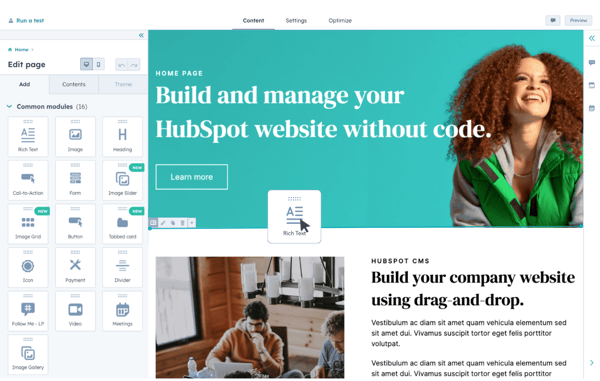
HubSpot CMS uses themes and modules instead of rigid templates. This allows:
-
Faster updates
-
Consistent layouts
-
Better editor experience
This is where development discipline matters—especially for complex sites.
Step 4: Content Migration and Formatting
Content should be migrated manually or semi-automatically—not blindly copied.
Why?
How to Migrate to HubSpot CMS for Free (When It Makes Sense)
Free migration is realistic for:
-
Small brochure websites
-
Less than 20 pages
-
No custom functionality
HubSpot offers import tools and free templates that help with basic setups.
When free migration fails
-
Complex layouts
-
Large blogs
-
Custom post types
-
Multi-language sites
In these cases, “free” often costs more later in fixes.
How to Migrate to HubSpot CMS Using API
API-based migration is useful when:
-
You have hundreds of pages
-
Content lives in multiple systems
-
Manual effort isn’t feasible
Common API use cases
-
Bulk blog imports
-
Automated page creation
-
Asset syncing
This approach requires strong validation because API imports can replicate errors at scale.
How to Migrate to HubSpot CMS Using HubSpot Tools
HubSpot provides built-in tools that support:
-
Blog imports
-
Page creation
-
Redirect management
-
Domain mapping
Used correctly, these tools reduce effort. Used incorrectly, they create messy structures.
Common Migration Mistakes That Hurt Results
Mistake 1: Ignoring Redirect Mapping
Every removed or changed URL must redirect correctly.
Mistake 2: Rebuilding Without SEO Review
Design-first migrations often forget search intent and keyword alignment.
Mistake 3: Publishing Without Staging Review
Always test pages in staging with SEO tools before going live.
Post-Migration Checklist for HubSpot CMS
After launch, verify:
Real success isn’t launch day; it’s stable growth after migration.
Why Businesses Choose Mpire Solutions for HubSpot CMS Migration
Teams usually contact us after:
-
Traffic drops post-migration
-
Developers don’t understand HubSpot CMS
-
Marketing teams can’t edit pages confidently
Our focus is clarity, performance and long-term usability not shortcuts.
Relevant Guide
How to Integrate HubSpot in Small Manufacturing Company – 2026 Guide
How to Create a New Property in HubSpot – 2025 Expert Guide
How to Change Email Preference Domain Setting in HubSpot – 2025 Updated Guide
HubSpot Free AI Writer – Your New Content Sidekick in 2026
n8n Google Calendar Integration
n8n API Integration
n8n HIPAA Compliance
Conclusion
Migrating a website is not just a technical switch; it’s a business decision that directly impacts visibility, lead generation and long-term growth. Understanding how to migrate to HubSpot CMS properly helps you avoid common pitfalls like traffic loss, broken pages and poor editor adoption. When the migration is planned with SEO, content structure and real user behavior in mind, HubSpot CMS becomes a powerful foundation for marketing and sales alignment.
Whether you choose a basic setup, a free migration approach or a more advanced API-driven process, success depends on preparation, testing and post-launch validation. Teams that rush the move often end up fixing problems later, while those that migrate with clarity gain faster pages, better tracking and more control over their website. A well-executed HubSpot CMS migration doesn’t just move your site; it positions your business for consistent, measurable growth.
FAQs
Most small to mid-sized sites take 2–6 weeks depending on complexity, content volume and SEO requirements.
Yes, if redirects, metadata and page structure are preserved correctly during migration.
Yes, but larger sites require structured planning, template logic and API support for efficiency.
Simple sites may not, but custom designs, blogs and integrations usually require technical expertise.
Yes, HubSpot CMS supports multi-language content with proper domain and page management.





 HubSpot Consulting Needs