Book a 30-Minute Call With Our Certified Consultant
Connect directly with our accredited consultant to get clear answers on
your HubSpot underutilized features, integrations, reporting and automation.
In this Consultation, you can discuss:
HubSpot Consulting Needs
Custom Automation Plan
How to Change Super Admin in HubSpot
Managing user permissions in HubSpot is crucial for maintaining control over your CRM, marketing and sales operations. One of the highest permission levels in HubSpot is the Super Admin role, which grants full control over account settings, billing and integrations.
If you need to transfer these rights whether due to team changes, role adjustments or company restructuring this guide will walk you through how to change super admin in HubSpot in a clear, step-by-step way. For more details on managing permissions, see our Hubspot Admin page.
What is a Super Admin in HubSpot?
A Super Admin in HubSpot is the top-level administrator with access to all tools, settings and account features. This role allows you to:
Add or remove users
Manage billing details
Adjust account-wide settings
Control integrations and connected apps
Assign permissions to other users
Because of these privileges, only trusted individuals usually in leadership or IT roles should hold this status.
Why You Might Need to Change a Super Admin
Changing the Super Admin is common in scenarios such as:
Employee Departure – When a previous admin leaves the company
Role Changes – When responsibilities shift to another team member
Security Measures – To prevent unauthorized access after staffing changes
Company Acquisition or Merger – When administration control changes hands
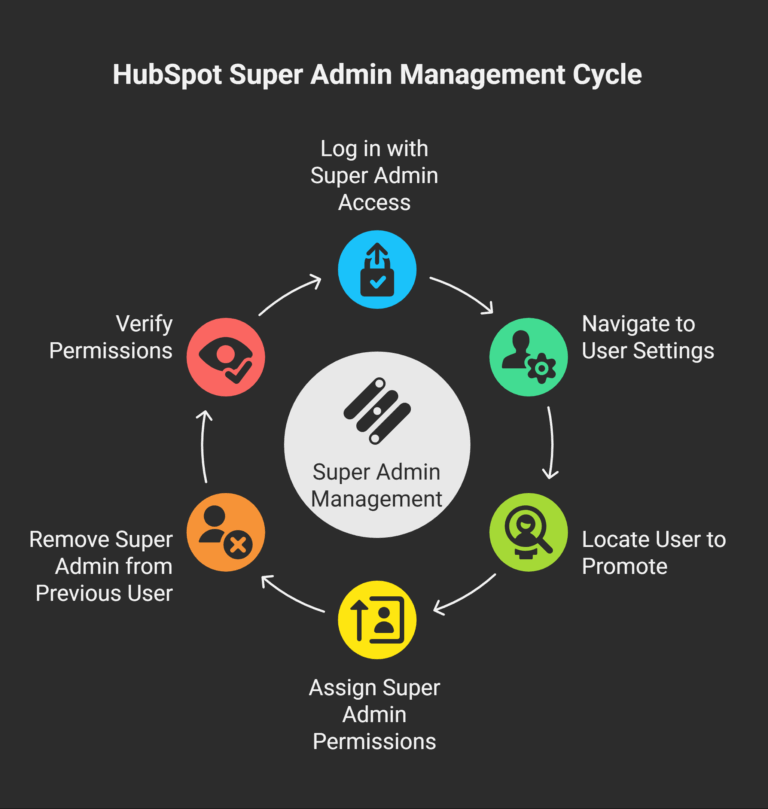
Step-by-Step Guide: How to Change Super Admin in HubSpot
Step 1: Log in with Super Admin Access
Only an existing Super Admin can promote another user to Super Admin status or remove an existing one. Ensure you are logged in with the correct credentials.
Step 2: Navigate to the User Settings
Click on your profile picture in the top-right corner of HubSpot.
Select “Settings” from the dropdown menu.
From the menu on the left, select “Users & Teams”.
Step 3: Locate the User to Promote
In the Users list, find the person who needs to become the new Super Admin. If they don’t have a HubSpot account yet, click “Create user” to add them first.
Step 4: Assign Super Admin Permissions
Select the user’s name to access their permission settings.
Scroll to the Permissions section.
Enable the “Super Admin” checkbox.
Click “Save” to confirm.
Step 5: Remove Super Admin from the Previous User (Optional)
If you want to revoke Super Admin access from another user:
Open their profile in Users & Teams.
Uncheck the “Super Admin” box.
Save your changes.
Step 6: Verify Permissions
Ask the new Super Admin to log in and confirm they can access all settings and tools.
Best Practices for Changing a Super Admin
Limit Super Admins – Avoid having too many top-level admins to reduce security risks.
Review Permissions Regularly – Audit user roles quarterly to ensure proper access levels.
Document Changes – Keep an internal log of who has Super Admin rights and when changes were made.
Use Strong Authentication – Always enable two-factor authentication for Super Admin accounts.
Common Issues When Changing Super Admin
Issue
Cause
Solution
Can’t assign Super Admin role
You’re not logged in as a Super Admin
Have an existing Super Admin make the change
New Super Admin can’t access billing
Role not fully saved
Revisit permissions and ensure checkbox is selected
User not visible in list
User not invited yet
Create user profile first
Security Tips After Changing Super Admin
Immediately update passwords if the role change was due to a security breach.
Remove access for any users who no longer need it.
Review API keys and integrations to ensure only current admins can manage them.
Conclusion
Understanding how to change super admin in HubSpot is essential for keeping your CRM secure and well-managed. By following the steps above, you can ensure smooth transitions of administrative control while protecting sensitive company data.
For more HubSpot super admin management tips, explore our Admin services page.
FAQs
1. Can I have more than one Super Admin in HubSpot? Yes, HubSpot supports having multiple Super Admins, though limiting the count is recommended for security purposes.
2. Can I change the Super Admin if I’m not one myself? No. Only a current Super Admin can promote another user or revoke permissions.
3. Does HubSpot notify users when their role changes? Yes, HubSpot sends an email notification whenever permissions are updated.
4. How quickly does the Super Admin change take effect? Changes are applied instantly after saving the new permissions.
5. Is there a limit to how many times I can change Super Admin? No, you can change it as often as needed but frequent changes may increase security risks.
I am a certified HubSpot Consultant, Full Stack Developer, and
Integration Specialist with over 15 years of experience successfully transforming
business-critical digital ecosystems. My expertise spans the entire software lifecycle,
ranging from high-performance web application development to managing large-scale
migrations, enterprise-grade CRM integrations, and secure compliance-driven solutions.





 HubSpot Consulting Needs
 HubSpot Consulting Needs